How to Use PhotoCraft: A Careful First-Edit Workflow
Learn a practical first-edit workflow in PhotoCraft: open a copy, inspect layers, make a reversible adjustment, and export a result.
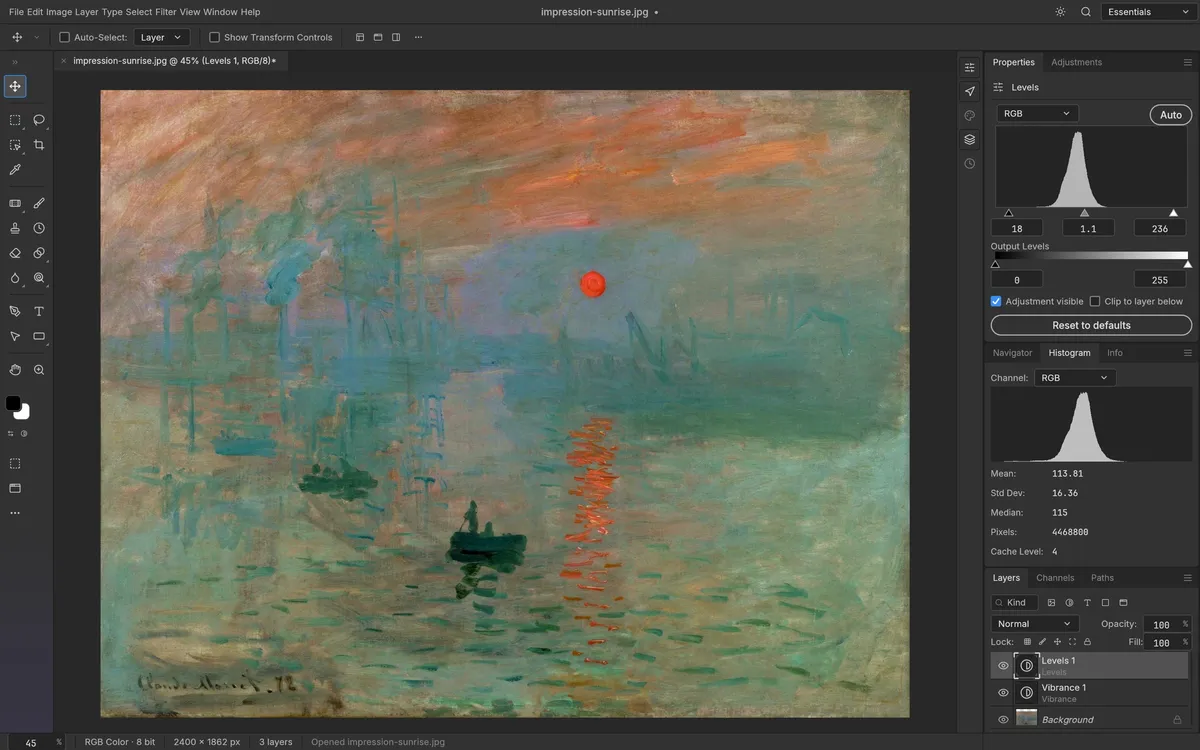
PhotoCraft has familiar raster-editor parts—canvas, toolbar, layer panel, and menus—but it is still early alpha. The safest way to learn how to use PhotoCraft is to work on a duplicate image, make one change at a time, and export a copy. The steps below follow features documented in the v0.6.0 project README; exact labels can change between releases.
1. Open a copy of a simple image
Download a build from the official release guide, launch it, and use the app’s open command to load a JPEG, PNG, or a file you know PhotoCraft supports. Begin with a small, non-critical image. If you are testing PSD compatibility, preserve the original and compare the exported copy in a second editor.
2. Read the document before editing
Look at the layer list and identify the active layer. Toggle visibility on a layer if you need to understand what it contributes, then restore it before continuing. Save your working copy in the project’s native format if you want to retain the edit structure; use a flattened export only for a delivery copy. Avoid assuming that every imported effect or font will render exactly as it did in the source application.
3. Make a reversible change
Try an adjustment layer such as Levels, Curves, or Hue/Saturation, then inspect the image at fit-to-window and at 100% zoom. Adjustment layers let you revisit or disable an edit instead of baking the change into original pixels. You can also try a layer mask or a selection to constrain a change to part of the image. The official feature overview lists these tools and explains that smart selection runs locally.
4. Export and check the result
Use the export workflow to choose a delivery format and inspect the output in an image viewer. Confirm dimensions, transparency, text, and edges. If the result matters, reopen the exported file and compare it with the canvas. Keep your original and native working file until you are satisfied.
This is a learning path, not a guarantee that every format or feature behaves identically across platforms. The PhotoCraft tutorial applies the same careful process to a simple social graphic, and the FAQ summarizes current format and platform notes.