PhotoCraft for Windows: Official MSI and Portable Downloads
PhotoCraft for Windows has official x64, ARM64, and x86 MSI installers and portable ZIPs in the v0.6.0 release.
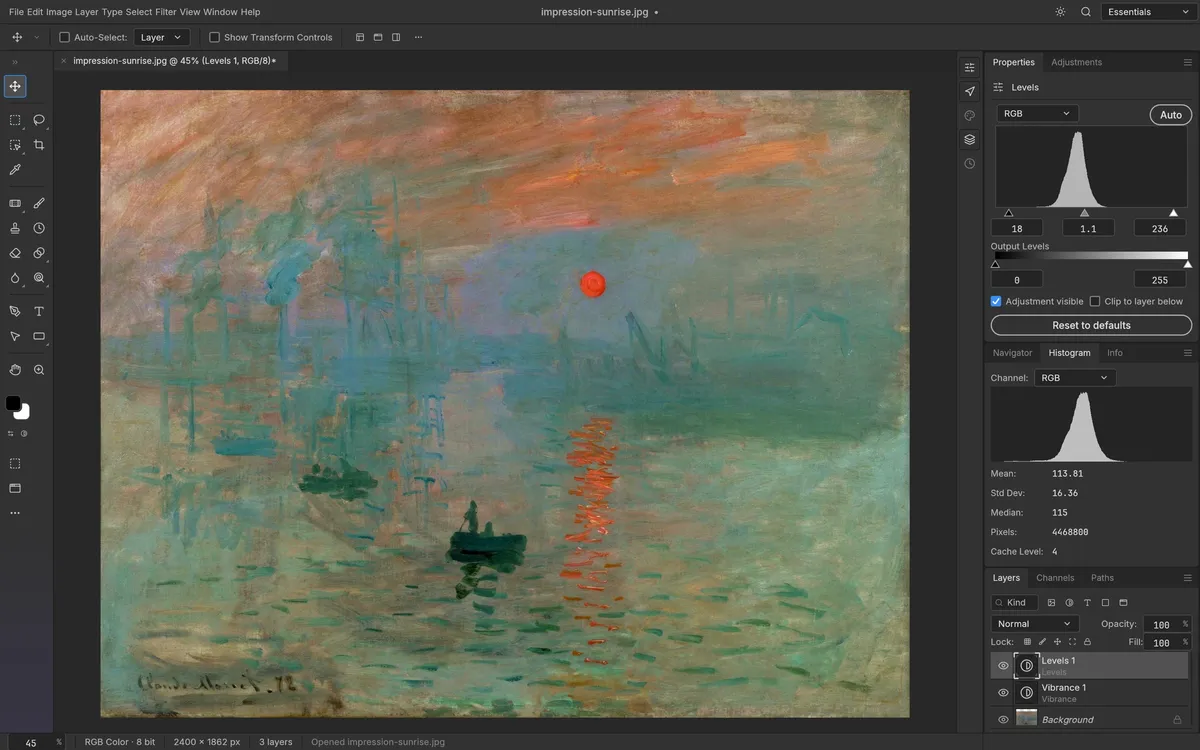
PhotoCraft for Windows is officially available in the v0.6.0 release. It includes MSI installers and portable ZIPs for x64, ARM64, and x86. This corrects older planning text that said Windows support was only on a roadmap. The official release page is the source for current assets and version notes.
Choose x64, ARM64, or x86
Open Settings → System → About and check the System type entry. Then select the matching Windows package from the release assets:
- x64: most current Intel and AMD 64-bit PCs.
- ARM64: Windows devices using an ARM processor.
- x86: 32-bit Windows systems.
The release provides both an MSI installer and a portable ZIP for each architecture. Choose MSI if you want the installed app flow; choose the portable archive only if it fits your permissions and update habits. Do not download an x86 package just because “x64” sounds unfamiliar—verify the system type first.
First launch checklist
Download only from the official PhotoCraft GitHub release. Read the version notes, match the architecture, and use the published checksum file if you need to verify a download. Start the app with a sample image, then check the result of any PSD import and export in a second application. Keep source files and project backups until you are confident in the workflow.
The existence of a Windows build does not mean every device configuration has been validated. PhotoCraft’s maintainers still describe the project as early alpha and call out gaps in professional workflows and plug-in compatibility. See the review for that status in context and the download guide for all platform packages.