PhotoCraft for Mac: Universal Download for Intel and Apple Silicon
Get PhotoCraft for Mac from its official release. The v0.6.0 macOS package is a universal disk image for Intel and Apple silicon.
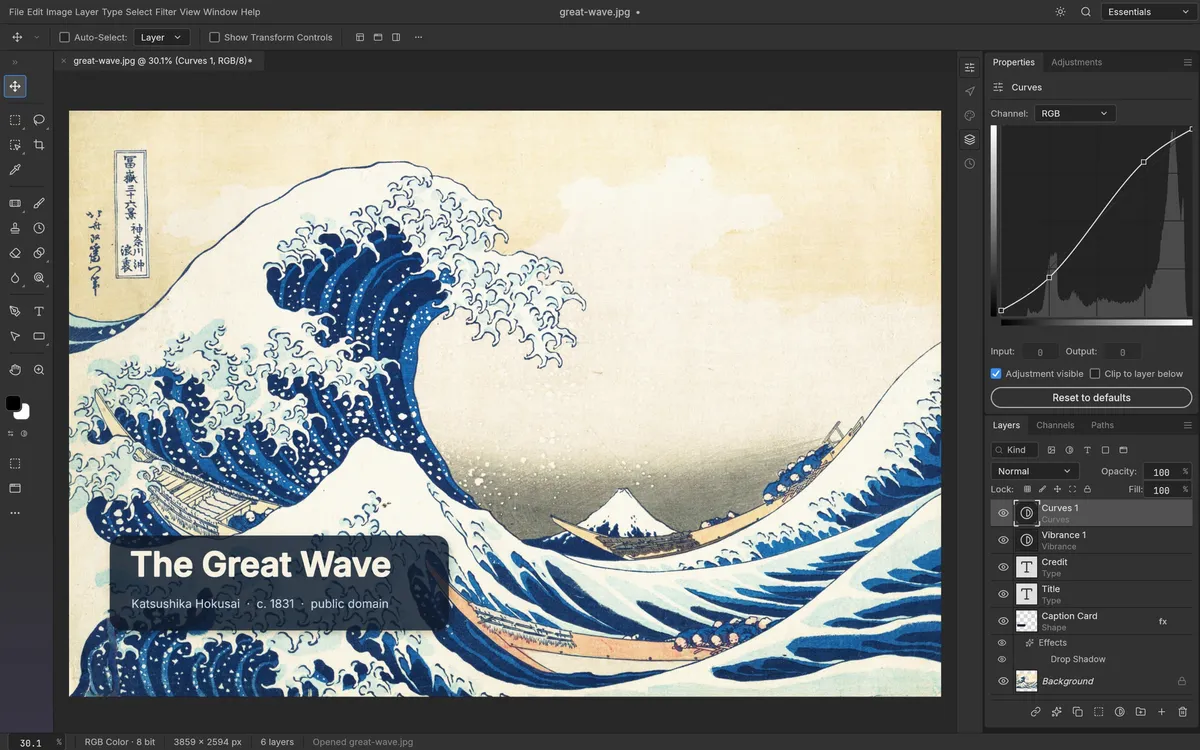
The PhotoCraft v0.6.0 release includes photocraft-0.6.0-macos-universal.dmg, a universal macOS disk image. The universal label means the published package is intended for both Intel and Apple silicon Macs; use the official release notes to confirm the current build and system requirements before installing.
Download and install
- Go to the latest PhotoCraft release.
- Download the macOS universal
.dmgfrom the release assets. - Open the disk image and follow the instructions shown by the installer. If macOS presents a security prompt, consult the current upstream guidance and your organization’s software policy; do not bypass a warning without understanding its source.
- Launch PhotoCraft and open a copy of a test image before using it with original work.
There is no need to select an M1/M2/M3/M4-specific download in v0.6.0: the release publishes one universal package. This does not establish a performance comparison between processor types. We have not benchmarked launch time, memory, or export speed on Mac hardware.
What should Mac users verify?
PhotoCraft is still early alpha, so start with the exact workflow you care about. Try a representative PSD copy, confirm that fonts and layer effects appear as expected, then export a copy and inspect it in a second application. Check that your tablet, color profile, and external fonts behave in your own setup.
If you are comparing the editor with Photoshop, look at the workflow comparison and source-based review. For Windows and Linux packages, visit the download guide.