PhotoCraft AI Features: Smart Selection vs Generative AI
PhotoCraft includes on-device smart selection tools, but its maintainers list generative AI as a current gap. Here is what the release actually supports.
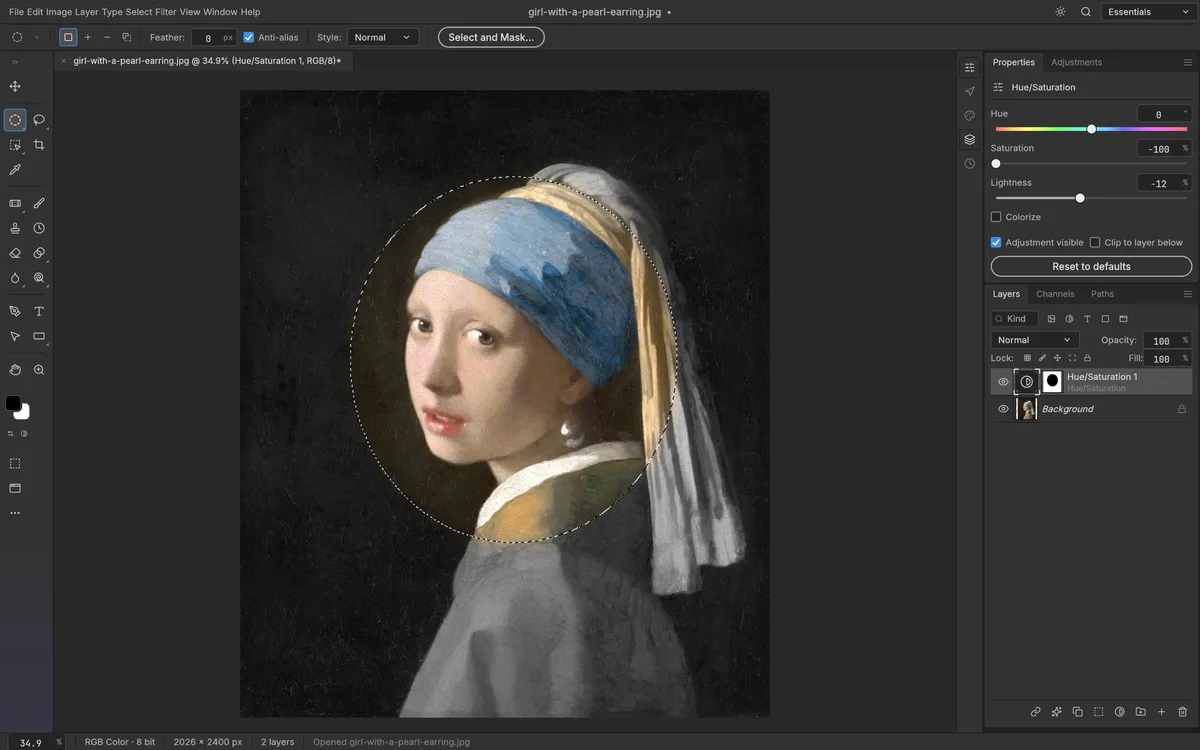
Searches for PhotoCraft AI features can lead to descriptions of AI Fill, AI Enhance, and automatic background removal. Those claims do not match the current official release. The project’s v0.6.0 README describes smart selection that runs on your machine, while its status section lists AI and generative features among the biggest gaps. PhotoCraft does not currently advertise Photoshop-style generative fill, automatic image enhancement, or a one-click AI background remover. See the official feature and status notes before relying on a tool name found elsewhere.
What “smart selection” means here
PhotoCraft documents marquee, lasso, Magic Wand, Quick Selection, Object Selection, Select Subject, and Select and Mask workflows. These help isolate pixels or objects so you can apply edits to a selected region. The README says smart selection runs locally without a cloud account. That statement applies to this selection workflow; it should not be expanded into a claim that every feature is an AI model or that the entire application has been independently privacy-audited.
Selection is different from generative AI. A selection marks the area an edit may affect. Generative fill synthesizes new image content based on a prompt or surrounding pixels. The first capability does not imply the second.
A non-generative fill tool is not the same as “AI Fill”
The current tool list includes Content-Aware Fill. That name refers to an image-editing operation, but the project’s published status still identifies AI/generative features as a gap. We therefore do not call it prompt-based AI fill, and we do not promise that it removes an object as well as Adobe’s Generative Fill. Test the tool on a duplicate image and inspect the result.
What to use if you need generative editing
If your workflow depends on generative fill or automatic background removal, use a product whose current documentation explicitly supports that task and review its file-handling terms. For a grounded comparison, read PhotoCraft vs Photoshop or explore PhotoCraft alternatives. PhotoCraft’s roadmap and future capabilities can change; check the latest release rather than treating a roadmap item as shipped software.